
Mobile Banking
Live on the go, bank on the go.
Starting July 1, 2026, all members need to re-enroll in Online Banking to use our updated Mobile and Telephone Banking services.
Our banking app puts the highest priority on security and usability. It’s ready to fit seamlessly into your life and into your hands!
- Secure for worry-free transactions: Manage funds, check your balances, or pay your bills with the app.
- Convenient for your busy schedule: Your money is at your fingertips, whether at home, at work, or on the go.
- Easy to use for everyone: The app is intuitive and clear, no matter your level of comfort with technology.
DOWNLOAD FOR IPHONE Minimum iOS Versions Supported – iOS 17*, iPadOS 17*
DOWNLOAD FOR ANDROID Minimum Android Version Supported - Android 12.0**
* Apple devices that support a maximum OS of iOS 15/iPadOS 15 or iOS 16/iPadOS 16 will continue to be able to download from the App Store. Any defects exclusive to iOS 15/iPadOS 15, iOS 16/iPadOS 16, and/or devices that only support OS versions below iOS 17 will not be addressed.
** Android devices that support Android 11 or later will continue to be able to download from Google Play. Any defects exclusive to Android 11 and/or to devices that only support OS versions below Android 12 will not be addressed.
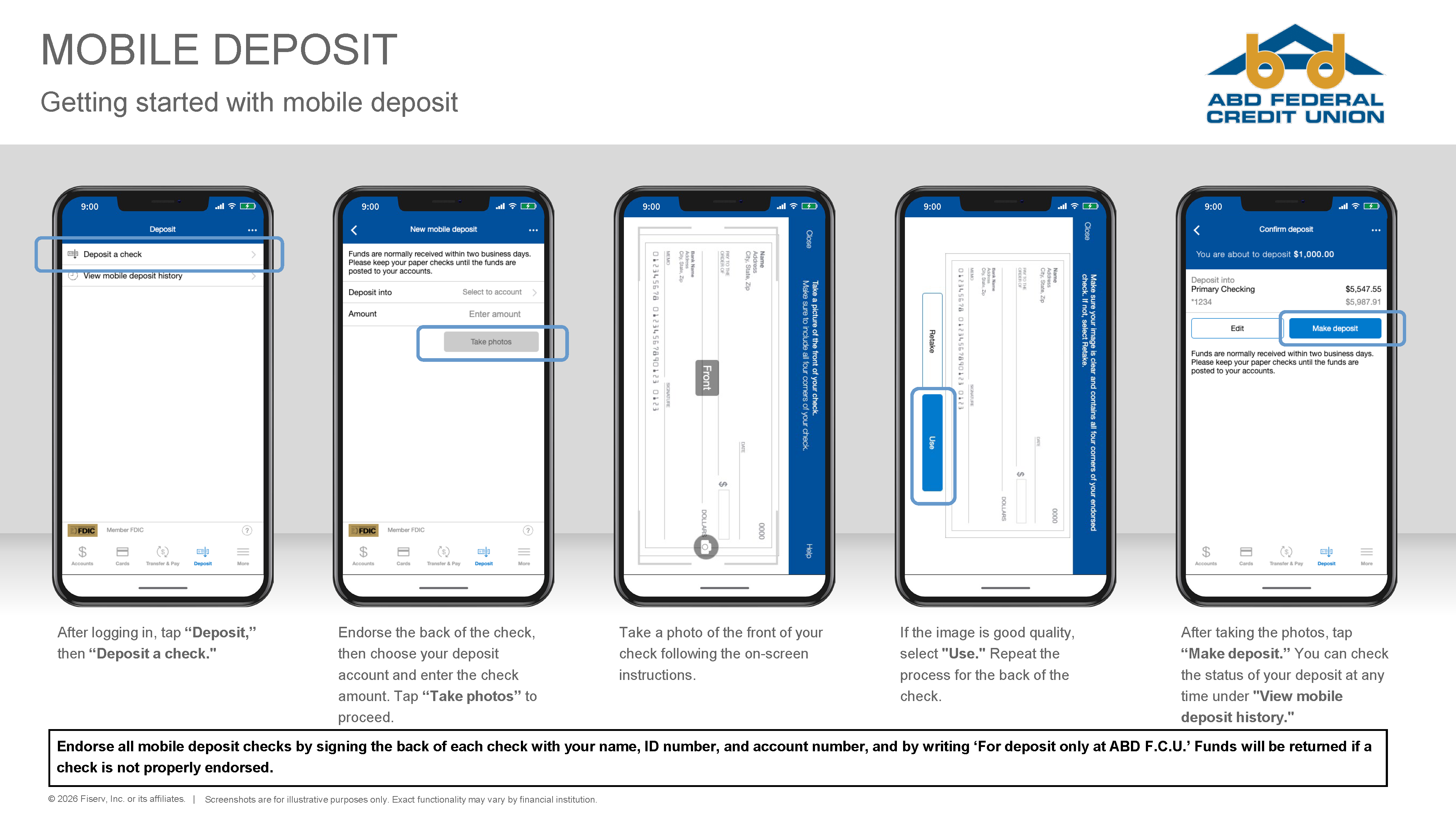
To get started with our new Mobile Deposit feature:
- After logging in, tap “Deposit,” then “Deposit a check."
- Endorse the back of the check, then choose your deposit account and enter the check amount. Make sure to endorse all mobile deposit checks by signing the back of each check with your name, ID number, and account number, and by writing ‘For deposit only at ABD F.C.U.’ Funds will be returned if a check is not properly endorsed. Tap “Take photos” to proceed.
- Take a photo of the front of your check following the on-screen instructions.
- If the image is good quality, select "Use." Repeat the process for the back of the check.
- After taking the photos, tap “Make deposit.” You can check the status of your deposit at any time under "View mobile deposit history."